
- /
- /
- /
Enroll to a Class after Login
- Click Enroll Here from the Classes Navigation bar.
- Click Add to Cart button to enroll into the corresponding classes for the family student. It will take you to the login screen to enroll the class.
- From here admin can select a particular class for to enroll using the search criteria’s of the class name and program type. Then click Add to Cart button.
CART :

- In this screen admin can see the Class name, Program type, Class location address, Class start date and end date.
- Then select the family and the corresponding student will be listed in the drop down to select the student for the family.
- Next select the tuition fee.
- Then click Add to Cart.

- It will take to the cart next page.
- In this page Admin will see the added student name, Class name and also the selected add-ons with the amount/ price.
- In this page Admin will have multiple options like Register another Student, Register for another class, Add Coupon code to apply in the transaction, Remove Class and add-ons.
- If the admin want to register another student from this page then they can click on register another student link which will take to the previous screen to select an existing student or Add a new student.
- If they want to

- The user can select multiple classes but not the same class again for the same student, if they select the same student again for the same class then they will get an error message, and they will not be enrolled in the class.

- The
 button is used to delete the selected class or add on from the cart.
 - On the right side they see a Order Summary.(Subtotal of the class and add-ons, Tax and Discounts if any, and also Promotional code)
- If the user has any promotional code then click on
 button will open a box like below, to enter the code and apply the discount.
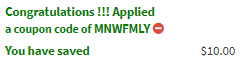
- If the discount is applied successfully then the user can see a successful message and also amount will be deducted from the subtotal,If they want to delete the coupon then they can just click delete icon.
- Otherwise and alert message will be displayed as below.

- The organizational tax is applied on the Amount (Subtotal – (Discounts + Coupons)).
- Clear your cart button
 will clear the cart completely and take to a page like below from there they can continue shopping by clicking the Continue Shopping button.
- After reviewing the cart click
 will take to a payment screen.
- The page provides the facility to the family to use the saved cards and enter their cvv to proceed further.
- Or they can enter new card details by clicking on Add new Credit Card and enter the credentials like Card holder name, card number, card expiry month and year.
- They can also change the billing address here.
- They can also review the amount, tax and discount /coupons if any applied.
- If the user wants to go back from this screen then they have to click
 button.
 - To make a payment click
 button.
 - Successful payment has been made will take to the invoice screen with Congratulations message otherwise an error message will be displayed.
- INVOICE:

- Family and also admin will get an email with the transaction details.
- in the invoice Transaction Details section shows the transactions / refunds/ transfers if any against the Invoice.
- Family can also download their invoice by clicking on the “View Invoice” button.
- Admin can resend an Order email to the family using “Resend Order email” button.