
- /
- /
- /
Enroll for Party
- Click Parties ->
 from Left side navigation bar, it will take to the page where all Parties are listed.
 - Select the Party theme and click Book.

- Click Book button will take to the cart page, where the the user needs to select the student for the Party.
- The time slots will be auto calculated from the Party settings, and the Location schedule settings.

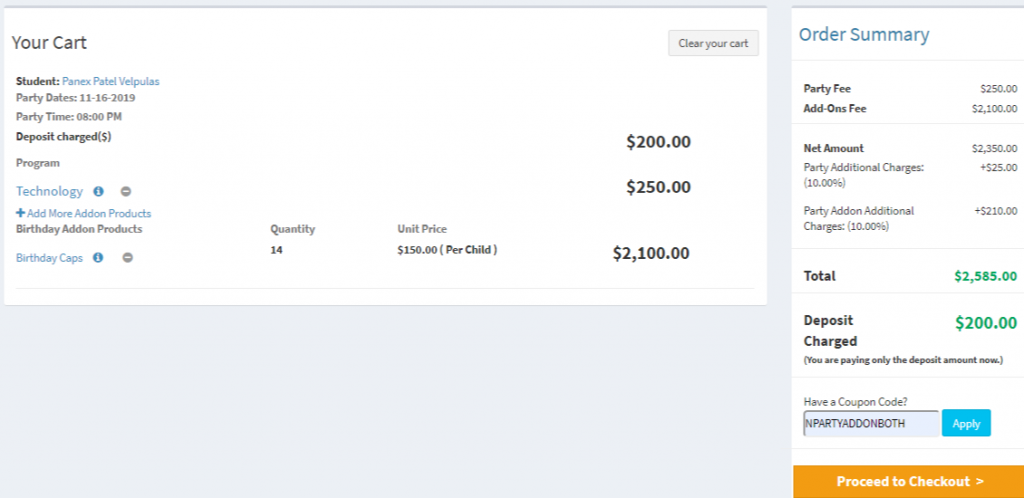
- On the right side they see an Order Summary.(Subtotal of the party, add-ons, Tax and Discounts if any, and also Promotional code)
- If the user has any promotional code then click on
 button will open a box like below, to enter the code and apply the discount.
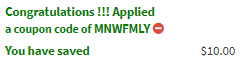
- If the discount is applied successfully then the user can see a successful message and also amount will be deducted from the subtotal, If they want to delete the coupon then they can just click delete icon.

- Otherwise and alert message will be displayed as below.

- The organizational tax is applied on the Amount (Subtotal – (Discounts + Coupons)).
- Clear you cart button
 will clear the cart completely and take to a page like below from there they can continue shopping by clicking the Continue Shopping button.
Review Cart :
- Payment Page : Enter Card details and make a payment.
