
- /
- /
- /
Coupon Creation
- Login to the Lexa Class App using the credentials provided.
- Click on the configurations Menu in the sidebar to view the list of available configurations.(Refer to Screenshot below)

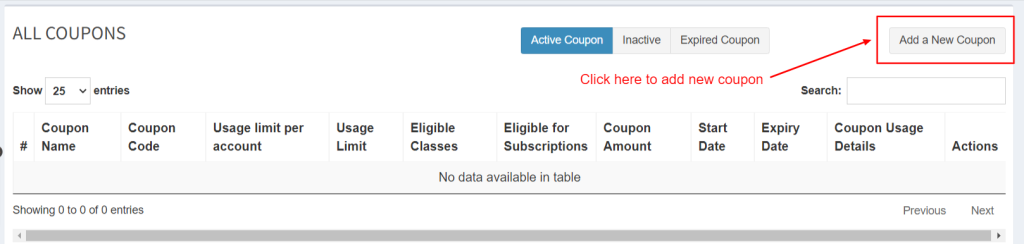
- Click on the coupons Module(displayed in the above screenshot) to view the coupons list(Active, inactive and expired) and an option to Create a New coupon.(Refer to Screenshot above)
- Click on the Add new Coupon button to create a new coupon as shown in the below screenshot.
- Coupon add screen will be as shown below and all the option are explained in the screenshot below.

- After clicking the SAVE button in the above screenshot, new coupon will be created and will be display in the list of coupons. Example active coupon is listed in the below screenshot.
